How to Audit Your Shopify Store: A 30-Minute Checklist
Most store owners only look closely at their store when sales drop. By then they usually guess at the cause: change the theme, try a new app, put more money into ads. A proper audit replaces the guessing. It shows you where shoppers are leaving and which fix will bring the biggest return.
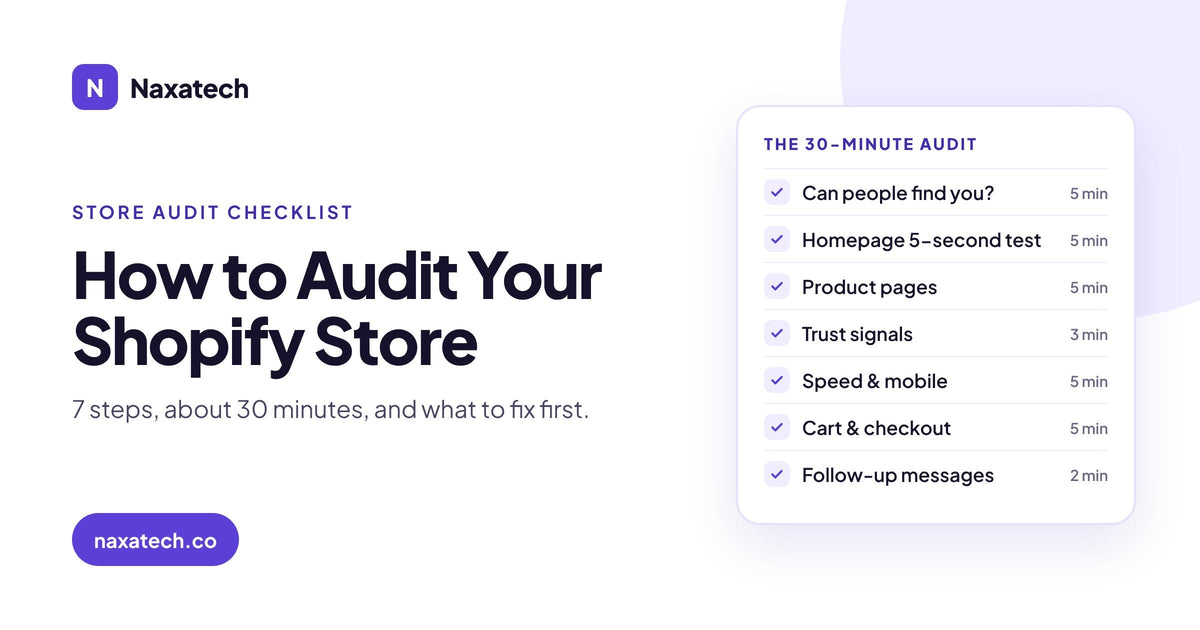
After about ten years of running Shopify stores, and helping more than 1,500 store owners with my team, this is the same order we follow when we look at a store for the first time. You can do it yourself in about 30 minutes with nothing more than your phone, your Shopify admin and Google Search Console.
Quick answer: how do you audit a Shopify store?
Follow the shopper's path. Check that people can find your store, that the homepage and product pages answer their questions, that the store feels trustworthy, that it loads fast on a phone, that checkout is smooth, and that you follow up with people who leave. Then fix the problems closest to the sale first.
Before you start: pull three numbers
Open Analytics in your Shopify admin and look at the last 30 days. Write down three numbers:
- Sessions: how many visits your store got.
- Added to cart: the share of visits where someone added a product to the cart.
- Conversion rate: the share of visits that ended in an order.
These three numbers tell you where to look hardest. Low sessions point to a traffic and visibility problem. Plenty of sessions but few add-to-carts points to your product pages and trust. Plenty of add-to-carts but few orders points to your cart and checkout. Keep them handy as you go through the steps below.
Step 1: Can people find your store? (5 minutes)
- Type site:yourstore.com into Google. Are your main collections and best sellers there?
- Open Google Search Console and check the Pages report. Note any pages that aren't indexed, and any "not found" errors.
- In the Performance report, look at which searches you already appear for. These are the easiest wins, because Google already connects you with them.
- Search for your main product type plus a word buyers use, like "buy" or "best". Where do you show up?
If your store barely appears on Google, start with why your Shopify store isn't showing up on Google. For a deeper technical check, use our 15-point Shopify SEO audit.
Step 2: Does your homepage pass the 5-second test? (5 minutes)
Open your homepage on your phone, look for five seconds, then look away. Could a stranger answer these three questions?
- What do you sell?
- Who is it for?
- Why should they buy it from you and not somewhere else?
Then check that the first thing a shopper sees leads straight to your best products, that the menu uses plain words people would search for, and that there are no pop-ups covering the page before it has even loaded.
Step 3: Do your product pages answer every doubt? (5 minutes)
Open your three best-selling products. For each one, check:
- Clear photos that show the product in use and up close.
- A price, shipping cost and delivery time that are easy to find without scrolling.
- A description that explains the problem the product solves, not just its specifications.
- Reviews close to the Add to cart button.
- Size, fit or compatibility details, if they apply.
- An Add to cart button that stays visible on a phone.
Every unanswered question is a reason to leave. Our guide to product pages that sell covers each fix in detail.
Step 4: Would a stranger trust you with their card? (3 minutes)
- Is there a real About page, contact details and a way to reach a person?
- Are your shipping, returns and refund policies easy to find and written in plain language?
- Do reviews look real, with names, dates and photos where possible?
- Is your domain your own, with a matching email address?
New visitors don't know you yet. If something feels off, they leave quietly. Here are 8 ways to build trust on your Shopify store.
Step 5: Is it fast and easy on a phone? (5 minutes)
- Run your homepage and a product page through Google's PageSpeed Insights and note the mobile score.
- On your own phone, using mobile data rather than Wi-Fi, time how long a product page takes before you can tap Add to cart.
- Check for text that is too small, buttons that are too close together and anything that jumps around while the page loads.
- In your Shopify admin, list your installed apps. Remove any you no longer use, since many of them load code on every page.
More on this in how page speed quietly cuts your sales and our mobile optimization guide.
Step 6: Walk through cart and checkout yourself (5 minutes)
Add a product to your cart on your phone and go all the way to the payment step. Watch for:
- Surprise costs that appear only at checkout, like shipping or fees.
- Forced account creation before someone can pay.
- Missing payment options your customers expect, such as Shop Pay, Apple Pay or PayPal.
- Discount code boxes that send people off to search for a code.
If plenty of people add to cart but few buy, this is where your money is going. See why shoppers abandon their cart and how to win them back.
Step 7: Do you follow up with people who leave? (2 minutes)
Most visitors won't buy on their first visit. Check that these automatic messages are switched on and actually sending:
- A welcome email for new subscribers.
- An abandoned checkout email.
- An abandoned cart or browse reminder.
- A thank-you and review request after purchase.
Here's how to set up the 5 email and SMS flows every store needs.
How to decide what to fix first
By now you'll probably have a list of ten or more problems. Don't try to fix them all at once. Sort them using two questions:
- How close is this to the sale? A broken checkout or missing shipping information costs you orders today. A weak blog costs you traffic months from now. Fix problems closest to the payment step first.
- How much effort does it take? Turning on an abandoned checkout email takes minutes. Rebuilding your theme takes weeks. Do the quick, close-to-the-sale fixes first, then work outward.
A simple order that works for most stores: checkout and trust first, then product pages, then speed and mobile, then follow-up messages, and finally traffic and SEO. There's little point sending more visitors to a store that can't turn them into buyers yet.
Your 30-minute audit checklist
- Pulled sessions, add-to-cart rate and conversion rate for the last 30 days
- Checked indexing and "not found" errors in Search Console
- Homepage passes the 5-second test on a phone
- Top 3 product pages show photos, price, shipping, reviews and a visible Add to cart button
- Policies, contact details and About page are easy to find
- Mobile speed tested and unused apps removed
- Test checkout completed on a phone with no surprise costs
- Welcome, abandoned checkout and post-purchase messages are on and sending
- Problems sorted by how close they are to the sale
Skip the manual work
Run the free store audit
Paste your store URL and our audit tool checks many of these points in about a minute, gives you a Store Growth Score and shows which issues to fix first.
Frequently asked questions
How often should I audit my Shopify store?
A full audit every three to six months is enough for most stores. Do a quick one after any big change, such as a new theme, a new app, a price change or a sudden drop in sales.
Can I audit my own store, or do I need an expert?
You can do everything on this checklist yourself with free tools. An expert helps when you need a second pair of eyes, when the fixes need code, or when you want someone to rank the problems by how much money each one is costing you.
What's the difference between an SEO audit and a store audit?
An SEO audit only looks at how well Google can find and rank your store. A store audit looks at the whole path from search to sale, including product pages, trust, speed, checkout and follow-up.
What should I do if my sales suddenly dropped?
Start with the three numbers at the top of this guide. Compare them with the month before. Whichever number fell tells you which step to check first.
Want a second opinion? Run the store audit, or message me on WhatsApp and I'll tell you what I'd fix first.
Brian Cole, Naxatech
Get the exact steps to fix it
Each Growth Kit gives you the steps, settings, templates and a checklist for this problem. Download it instantly and work through it at your own pace.